
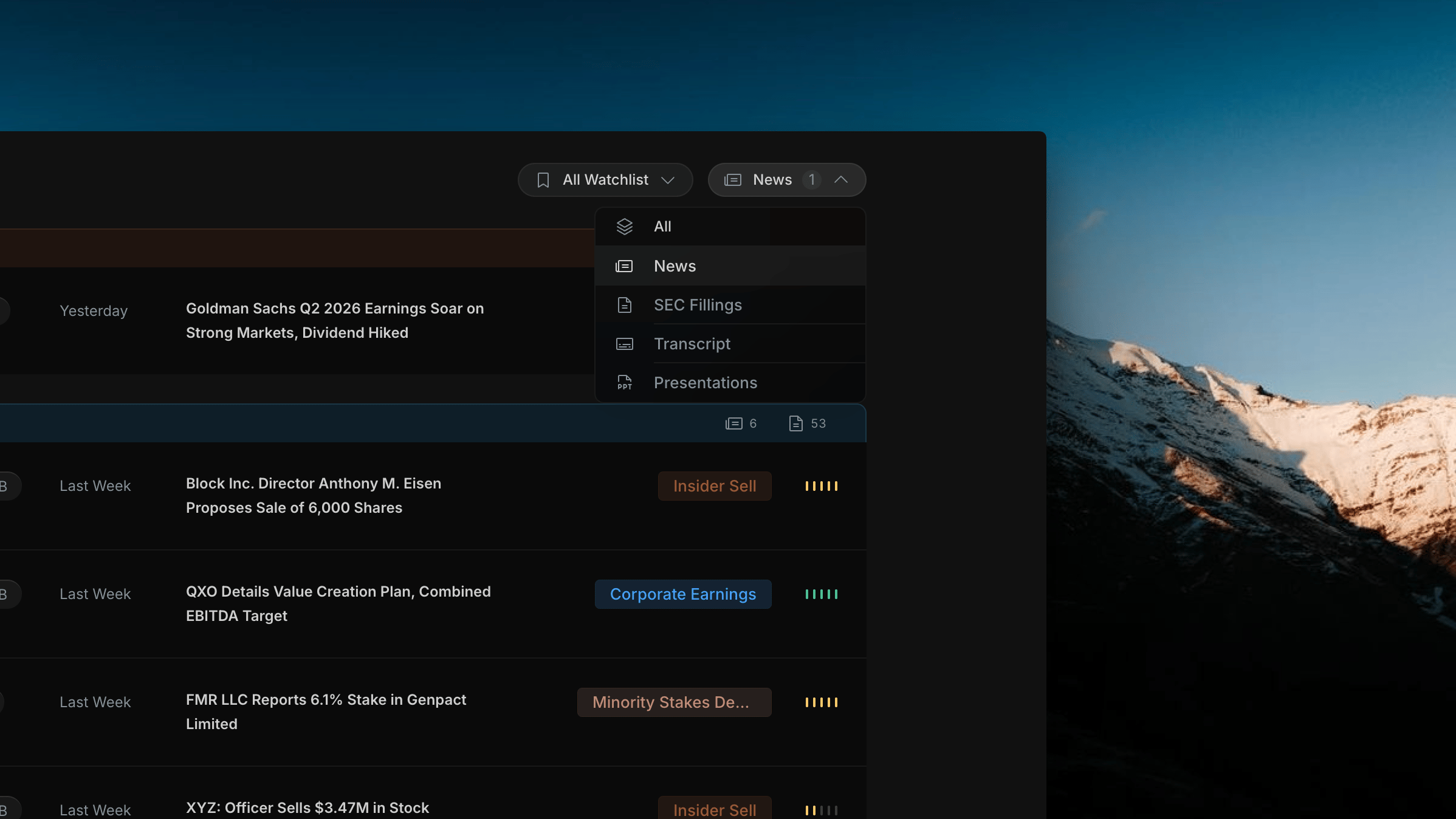
Insighthread's type filter dropdown — select News to switch the feed to news-only and activate the category list in the left panel
The Type Filter Dropdown
Click the filter button to open a dropdown with five options:What Changes When You Select News
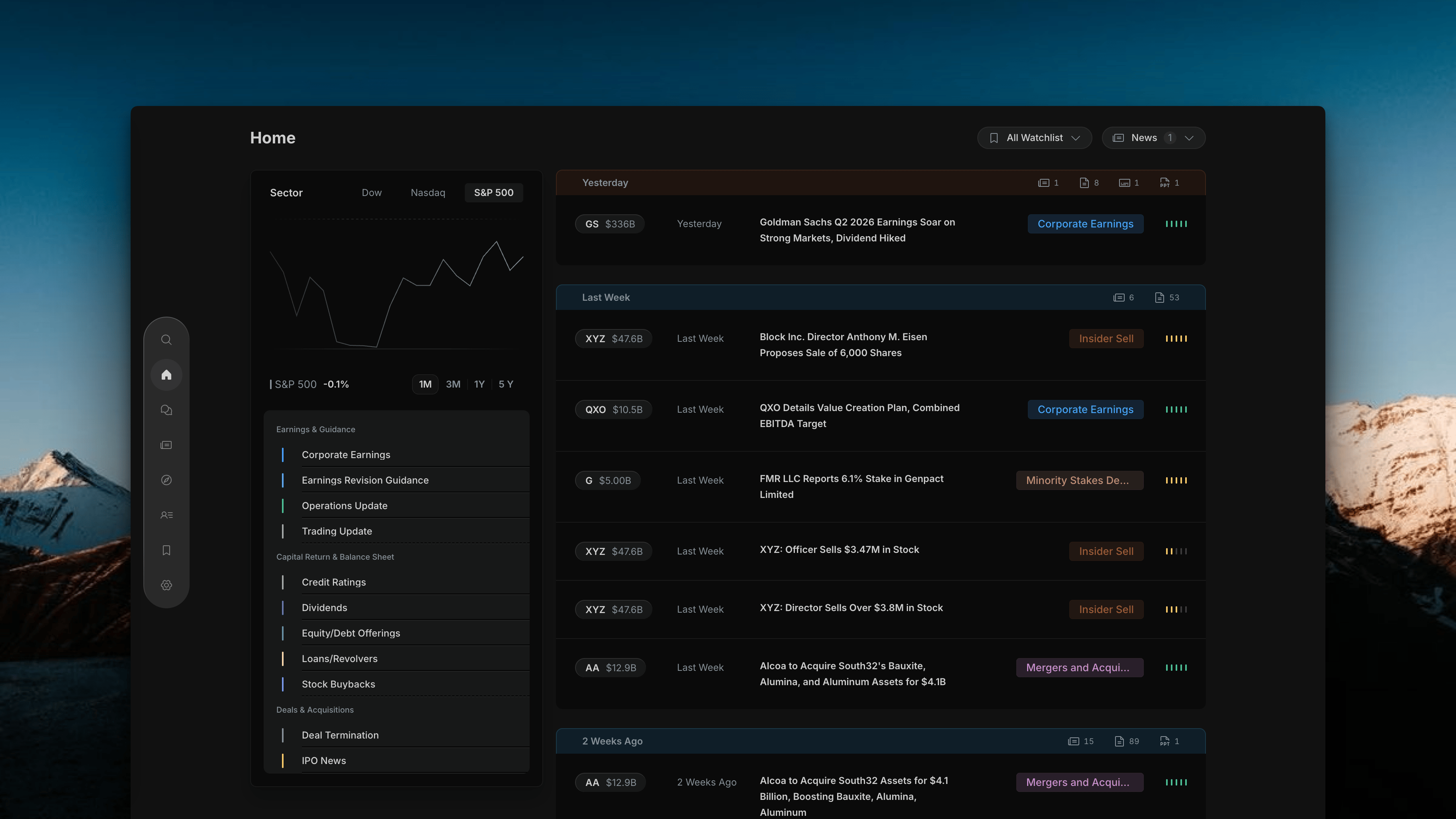
Right feed — shows only news rows. Each row has a category badge (e.g.Corporate Earnings, Insider Sell, Minority Stakes Deals) and a 5-bar impact signal. Raw filing rows are hidden.
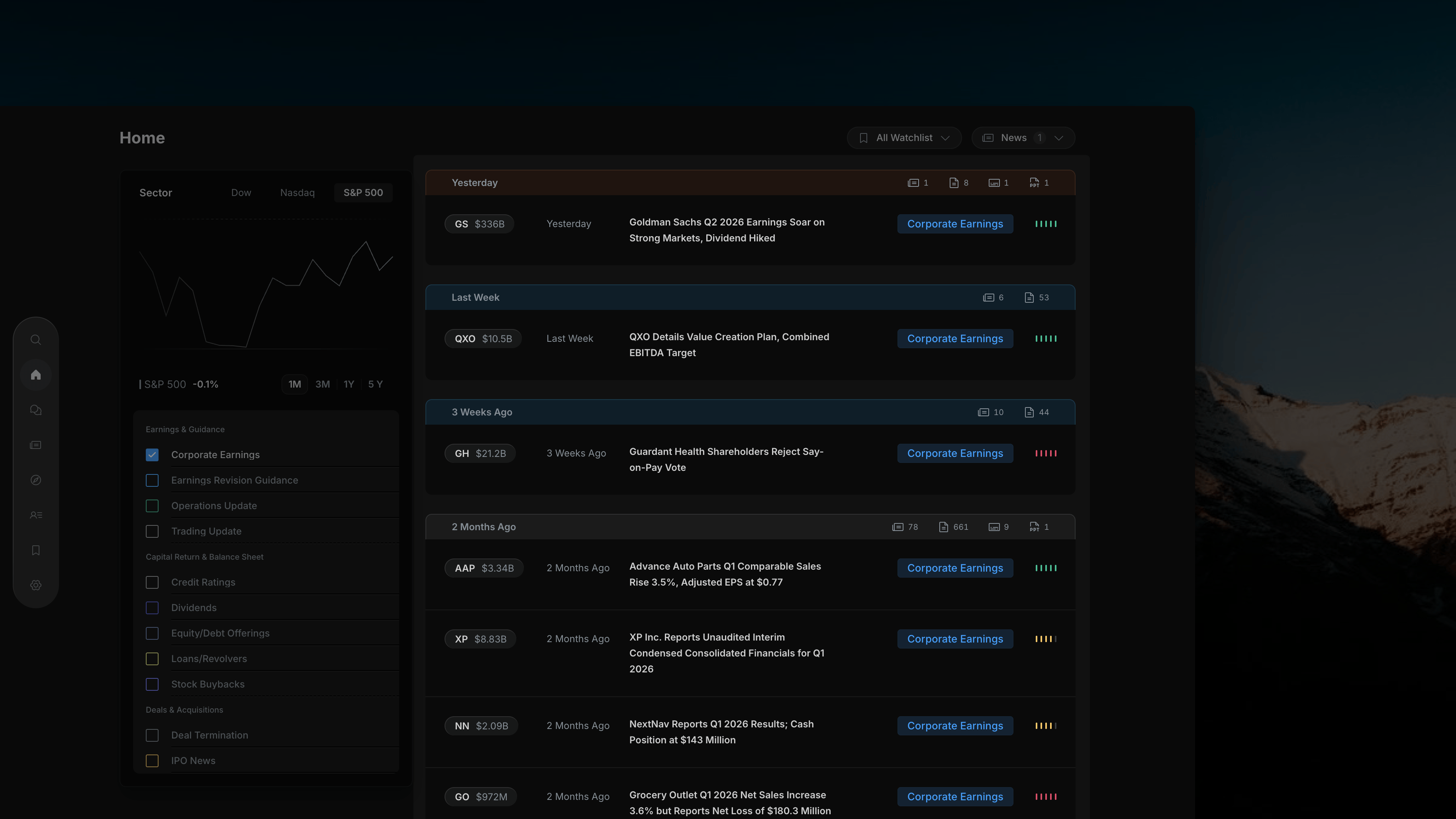
Insighthread News view — right feed shows only news rows with category badges and 5-bar impact signals, grouped by date
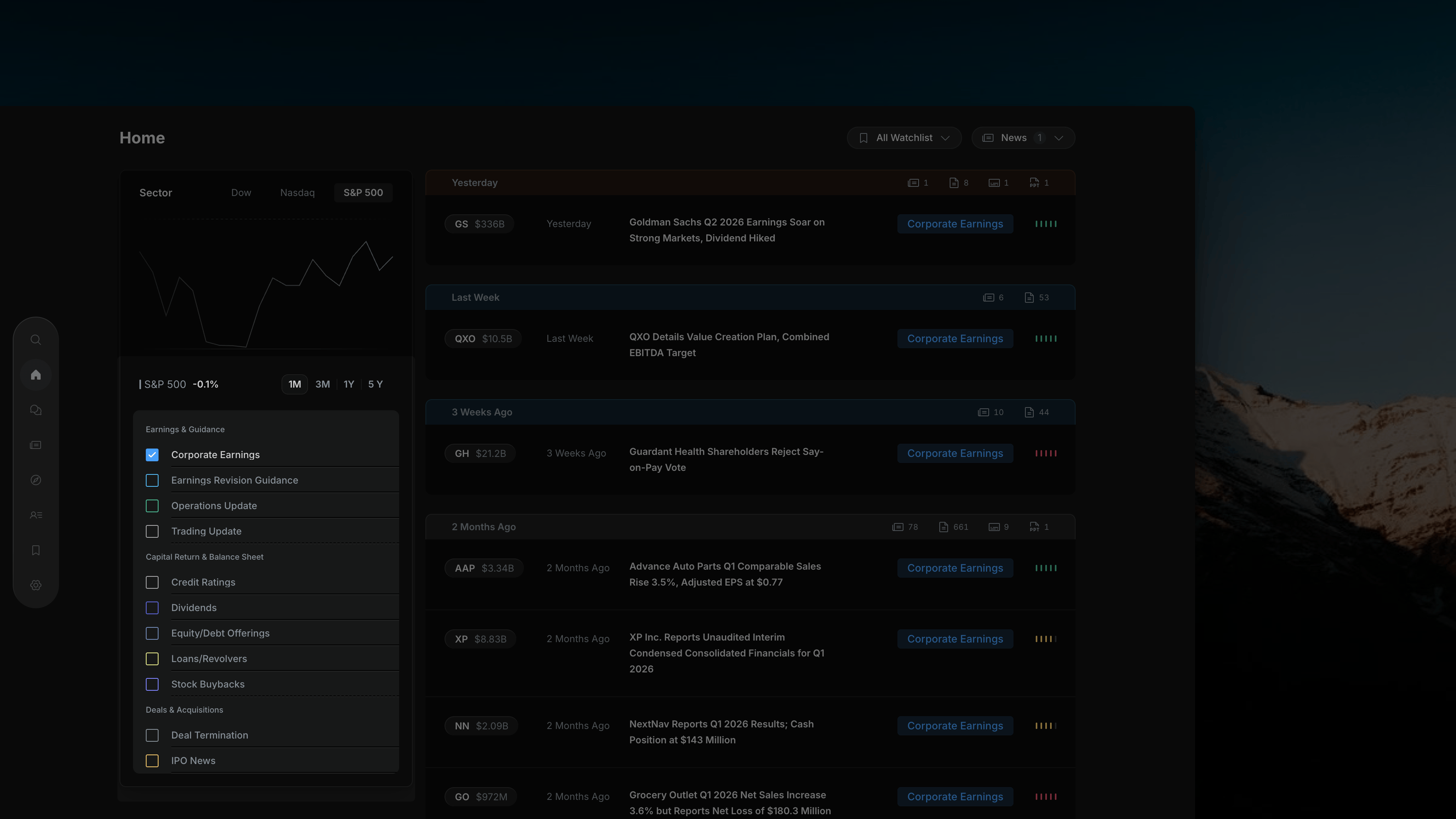
Insighthread's left panel transforms into a news category list grouped by event type when the News filter is active
Left Panel — News Category List
The category list organises all 34 event types into 10 groups:How Category Filtering Works
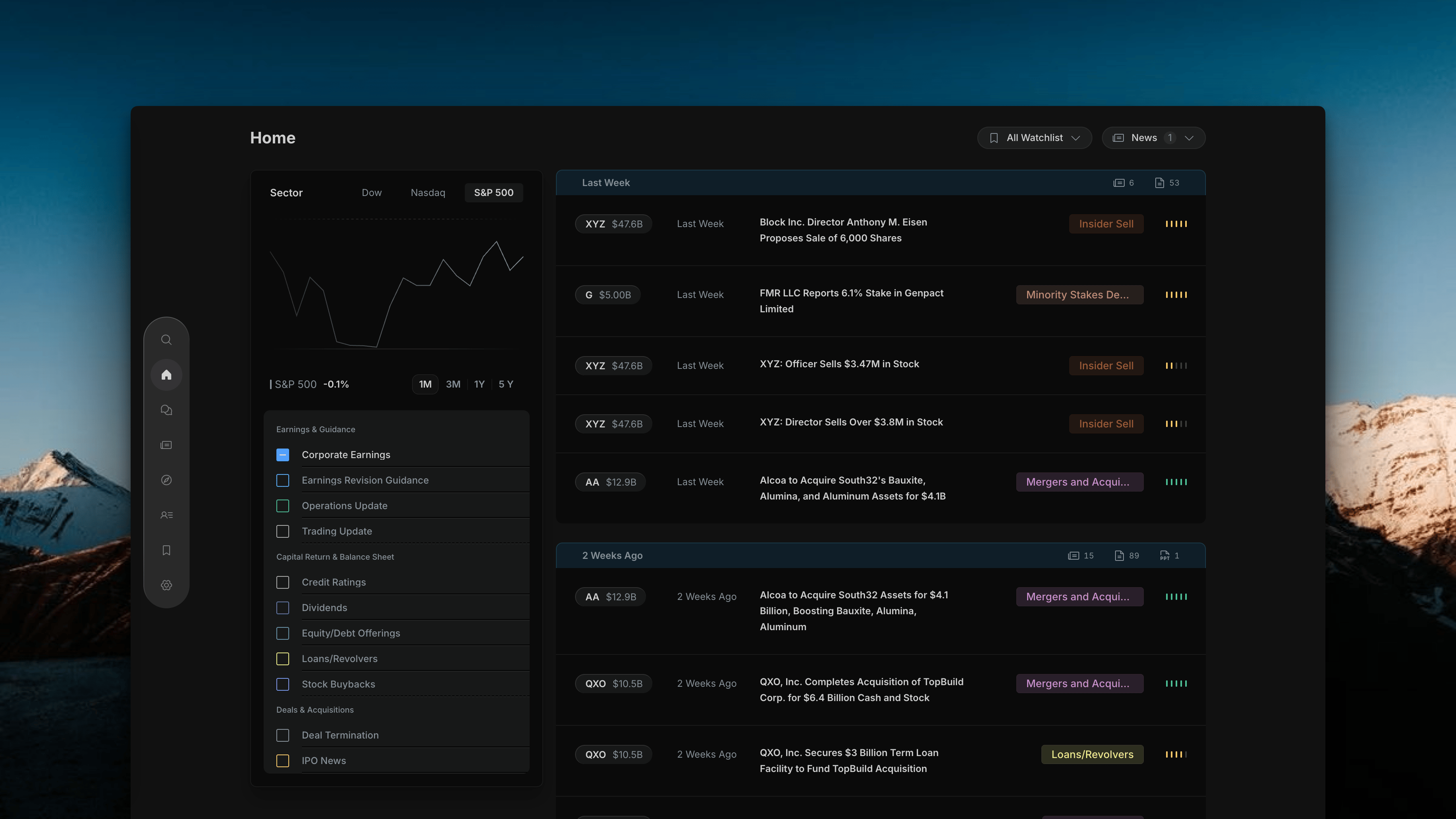
Each category has a checkbox and follows a three-state toggle:First click — Include
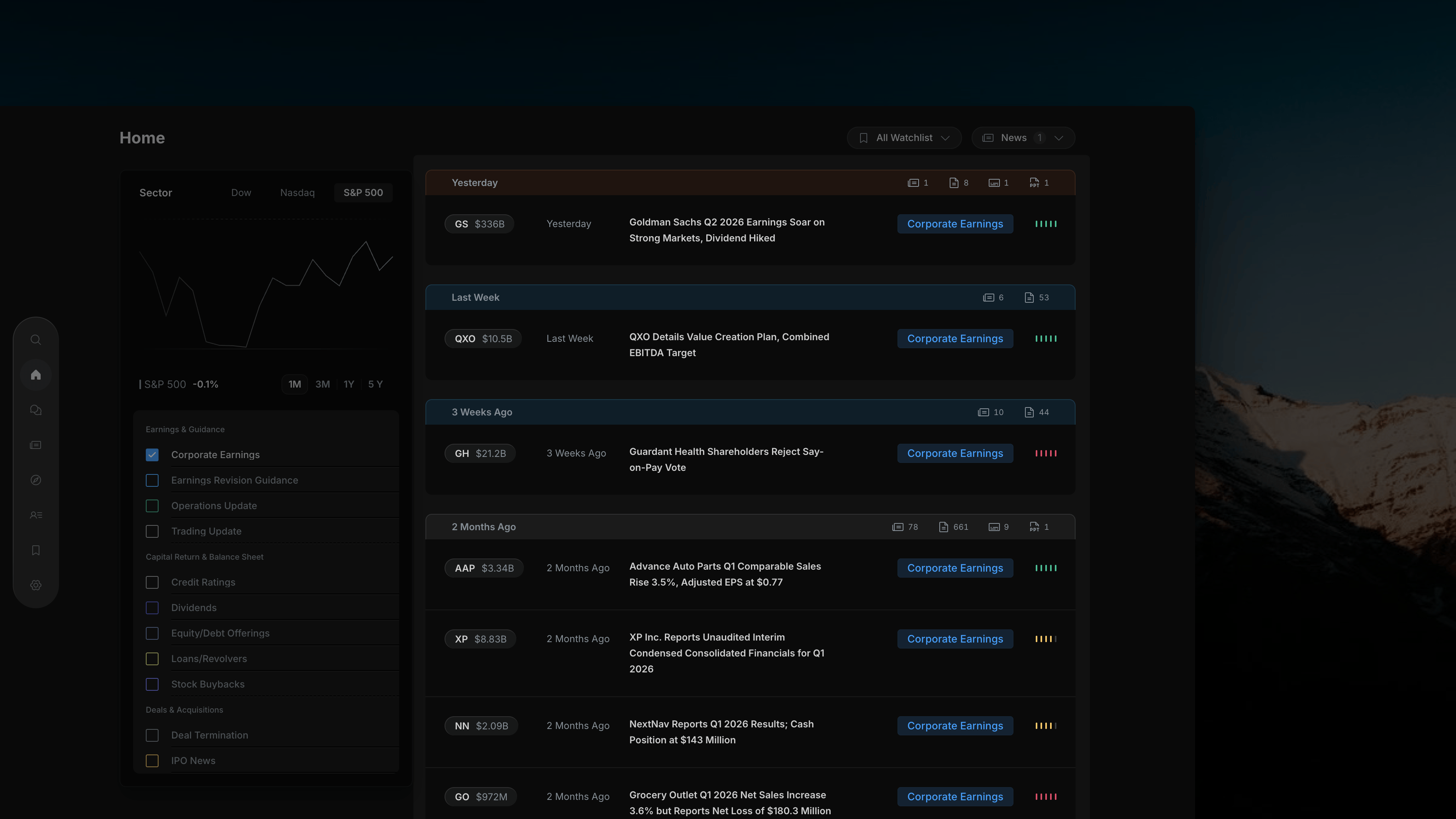
Insighthread include state — Corporate Earnings checked, feed shows only Corporate Earnings news
Second click — Exclude
Insighthread exclude state — category marked with a dash, matching news hidden from the feed
Third click — Reset
Insighthread reset state — checkbox cleared, no category filter active
Corporate Earnings + include Dividends shows both; include Corporate Earnings + exclude Insider Sell shows earnings news while hiding insider sell news.
Opening a News Article
Click any news headline in the feed to open the Article Detail overlay.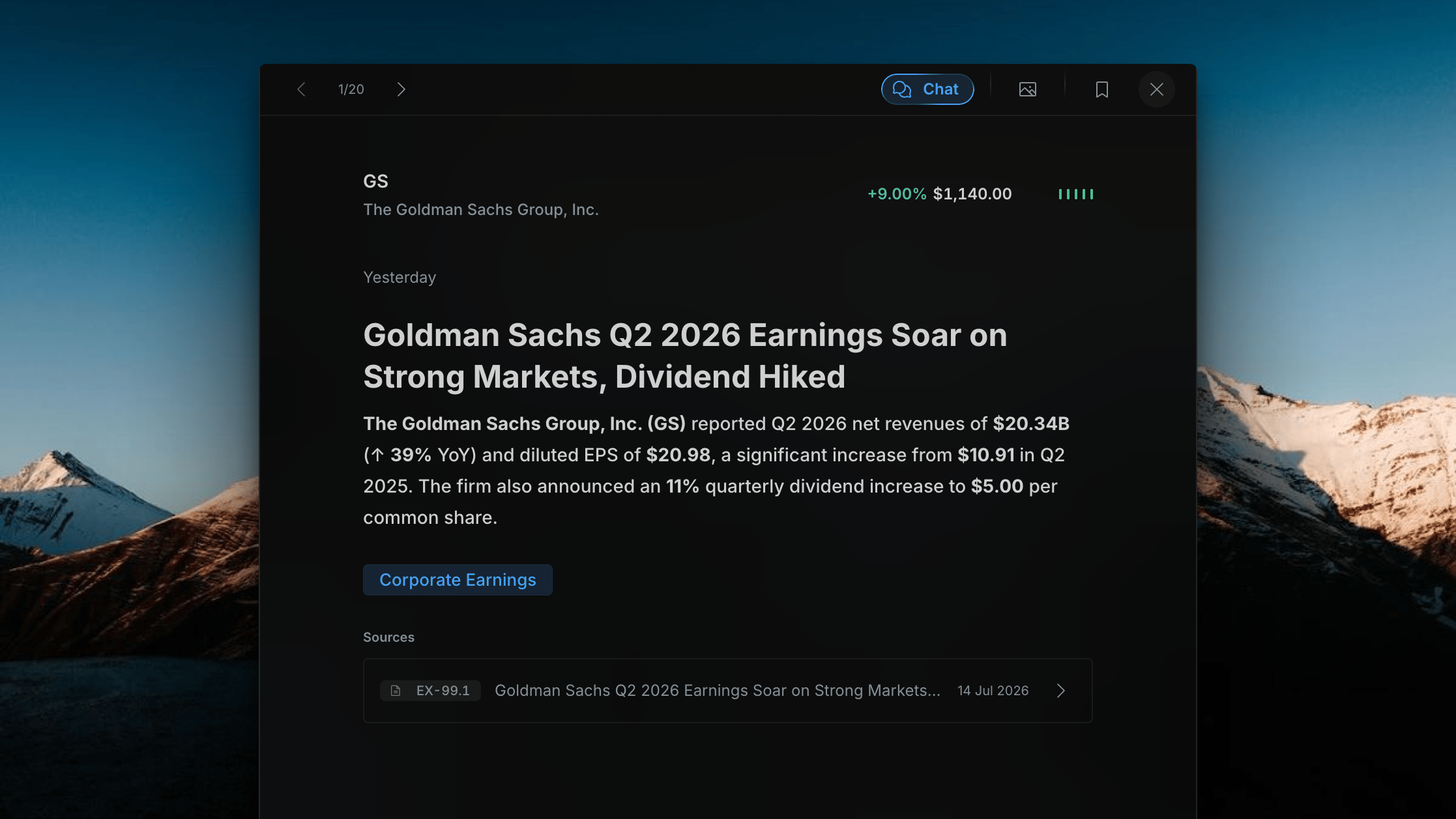
Insighthread's Article Detail overlay — full story, ticker price and impact signal, category badge, and source SEC filing link
- Pagination — navigate through all items in the current filtered feed (e.g. “1/20”) using the left/right arrows
- Ticker + company name and current price change with 5-bar impact signal
- Headline and article body — a concise, fact-only summary (~50–60 words) generated directly from the SEC filing
- Category badge — confirms the event type
- Sources — the exact SEC filing that generated this article (e.g.
EX-99.1 · 14 Jul 2026). Click the arrow to open the source document.