> ## Documentation Index
> Fetch the complete documentation index at: https://docs.insighthread.com/llms.txt
> Use this file to discover all available pages before exploring further.
# Transcript Filter
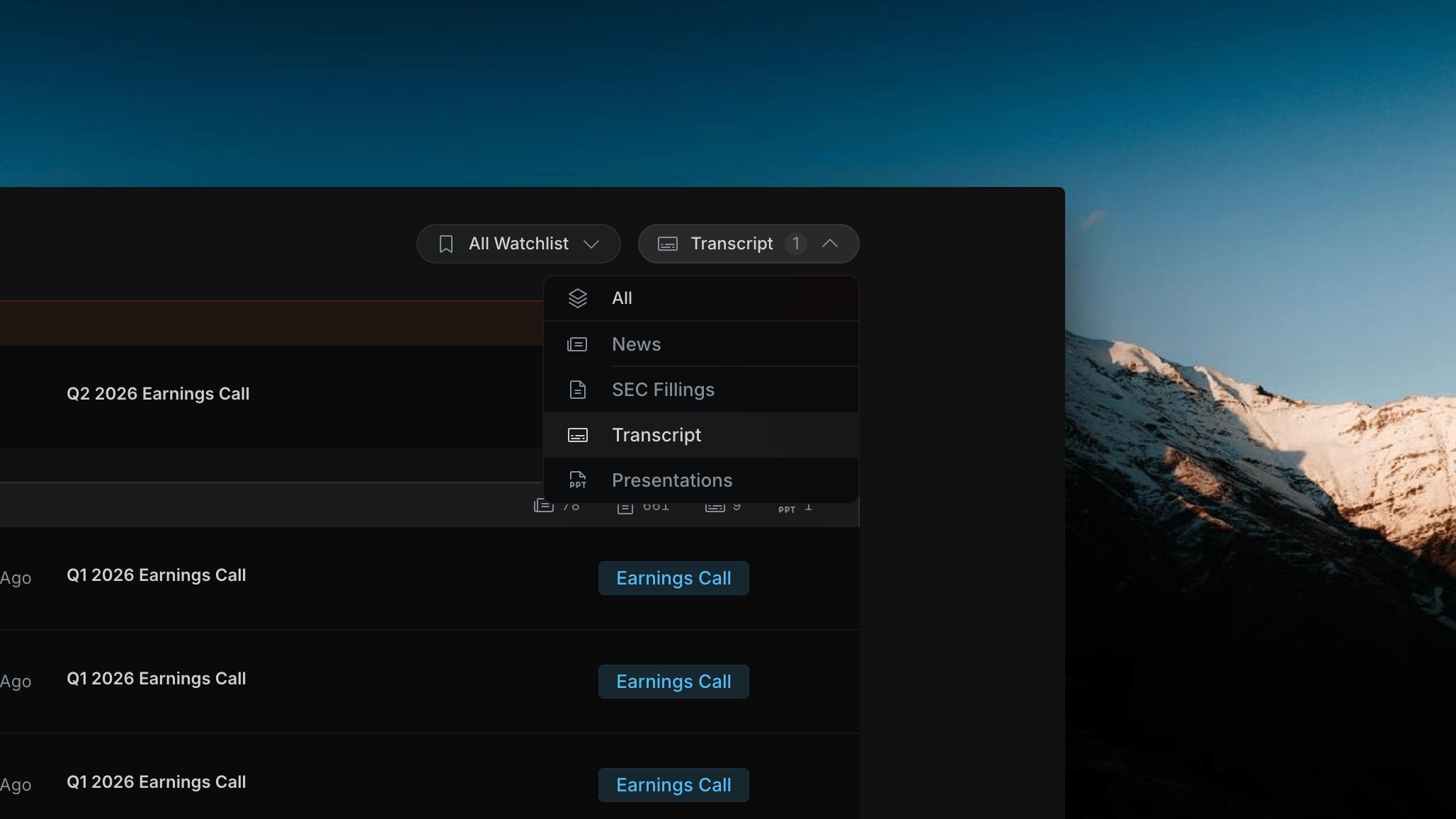
The **Transcript** filter scopes the activity feed to earnings call transcripts only. Unlike the News and SEC Filings filters, the left panel does not change — the market context panel (sector list, index chart) stays visible while the right feed narrows to transcripts.
 ## What Changes When Transcript Is Selected
Shows only earnings call transcript rows. Each row displays the ticker, market cap, date, and call title (e.g. "Q2 2026 Earnings Call") with an **Earnings Call** badge.
No change. The sector performance list and index chart remain — market context stays in view while you browse transcripts.
## Opening a Transcript
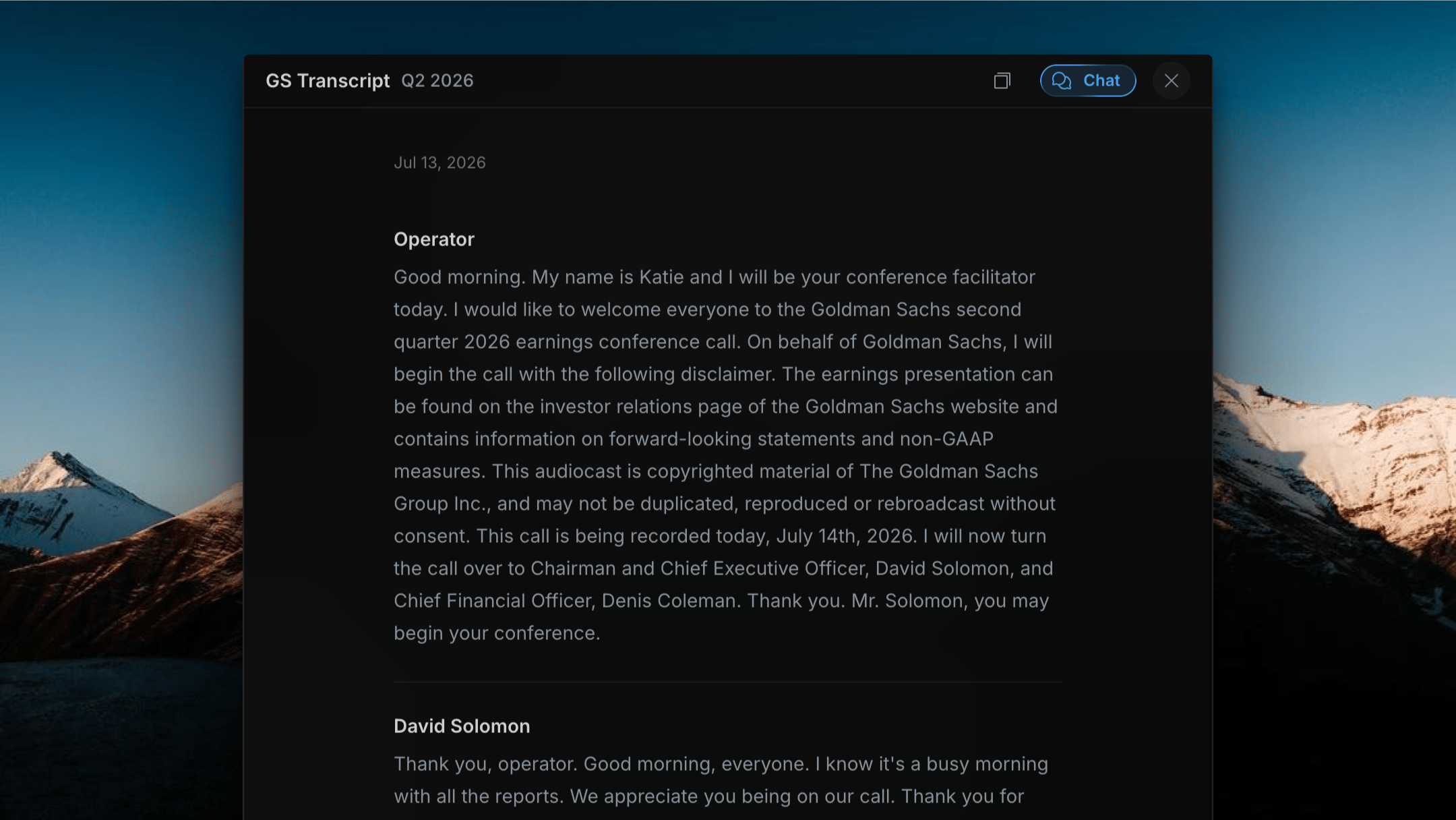
Click any row in the right feed to open the full transcript in a detail panel. The viewer shows:
* **Header** — company name, quarter, and filing date
* **Speaker sections** — each speaker (Operator, CEO, CFO, analysts) has their own labeled block with their full remarks
* **Full text** — the complete earnings call transcript as filed
## What Changes When Transcript Is Selected
Shows only earnings call transcript rows. Each row displays the ticker, market cap, date, and call title (e.g. "Q2 2026 Earnings Call") with an **Earnings Call** badge.
No change. The sector performance list and index chart remain — market context stays in view while you browse transcripts.
## Opening a Transcript
Click any row in the right feed to open the full transcript in a detail panel. The viewer shows:
* **Header** — company name, quarter, and filing date
* **Speaker sections** — each speaker (Operator, CEO, CFO, analysts) has their own labeled block with their full remarks
* **Full text** — the complete earnings call transcript as filed
 ## Chatting With a Transcript
Every transcript viewer has a **Chat** button in the top-right corner. Click it to open an AI chat session scoped to that specific transcript.
Use Chat to ask questions like "What did management say about margins?" or "Summarize the guidance for next quarter" without reading through the full call.
You can switch between reading the transcript and chatting with it at any time — the Chat panel and the transcript text stay open together.
## Related topics
- [Presentations Filter](/home/presentations-filter.md)
- [News Filter](/home/news-filter.md)
- [Overview](/home/overview.md)
- [Earnings Call Transcripts and AI Management Tone Analysis](/features/earnings.md)
- [What Is Insighthread? AI Stock Research Explained](/introduction.md)
## Chatting With a Transcript
Every transcript viewer has a **Chat** button in the top-right corner. Click it to open an AI chat session scoped to that specific transcript.
Use Chat to ask questions like "What did management say about margins?" or "Summarize the guidance for next quarter" without reading through the full call.
You can switch between reading the transcript and chatting with it at any time — the Chat panel and the transcript text stay open together.
## Related topics
- [Presentations Filter](/home/presentations-filter.md)
- [News Filter](/home/news-filter.md)
- [Overview](/home/overview.md)
- [Earnings Call Transcripts and AI Management Tone Analysis](/features/earnings.md)
- [What Is Insighthread? AI Stock Research Explained](/introduction.md)