> ## Documentation Index
> Fetch the complete documentation index at: https://docs.insighthread.com/llms.txt
> Use this file to discover all available pages before exploring further.
# Presentations Filter
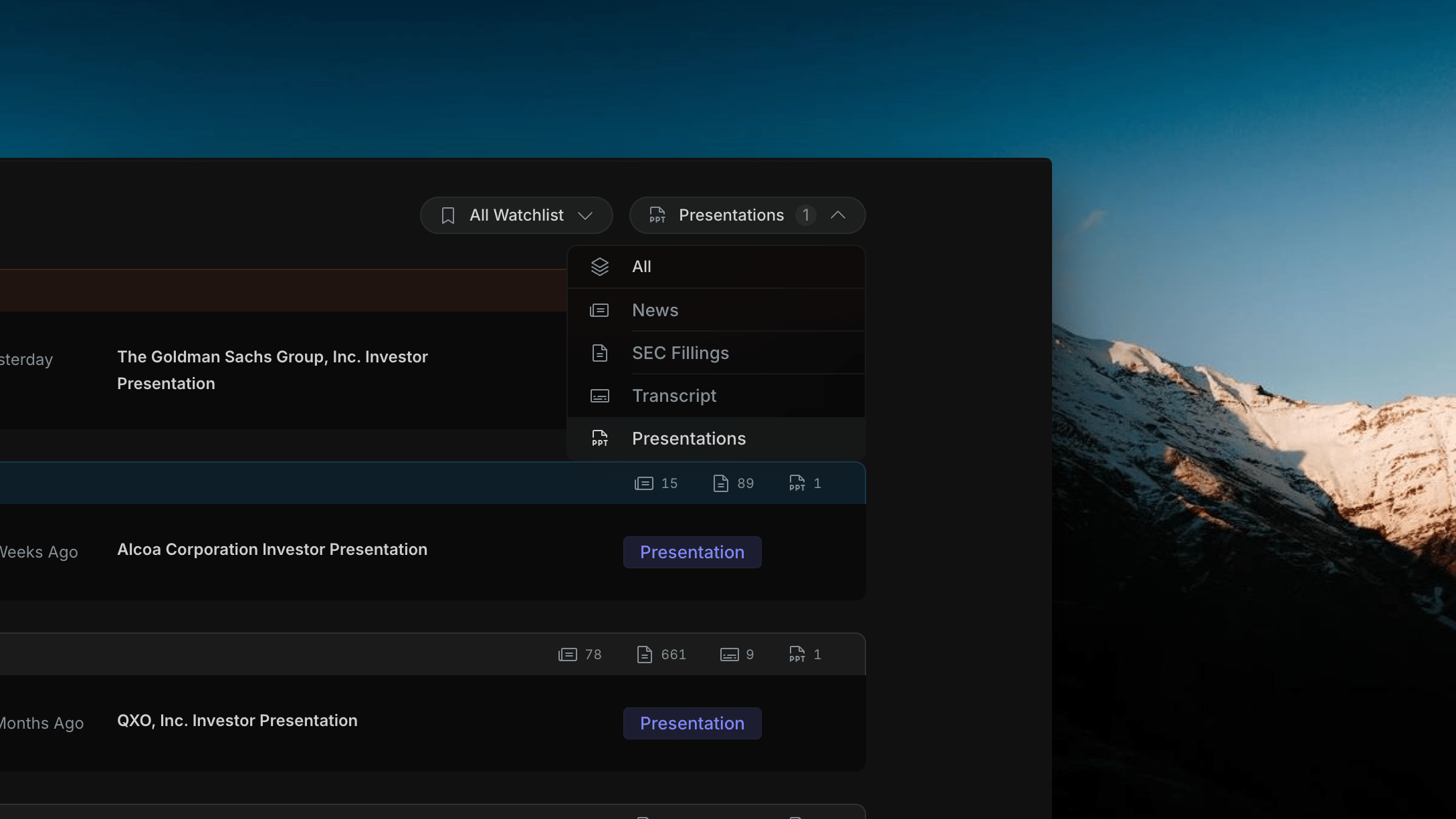
The **Presentations** filter scopes the activity feed to investor presentations only. Like the Transcript filter, the left panel does not change — the market context panel (sector list, index chart) stays visible while the right feed narrows to presentations.
 ## What Changes When Presentations Is Selected
Shows only investor presentation rows. Each row displays the ticker, date, and full presentation title (e.g. "The Goldman Sachs Group, Inc. Investor Presentation") with a **Presentation** badge.
No change. The sector performance list and index chart remain — market context stays in view while you browse presentations.
## Opening a Presentation
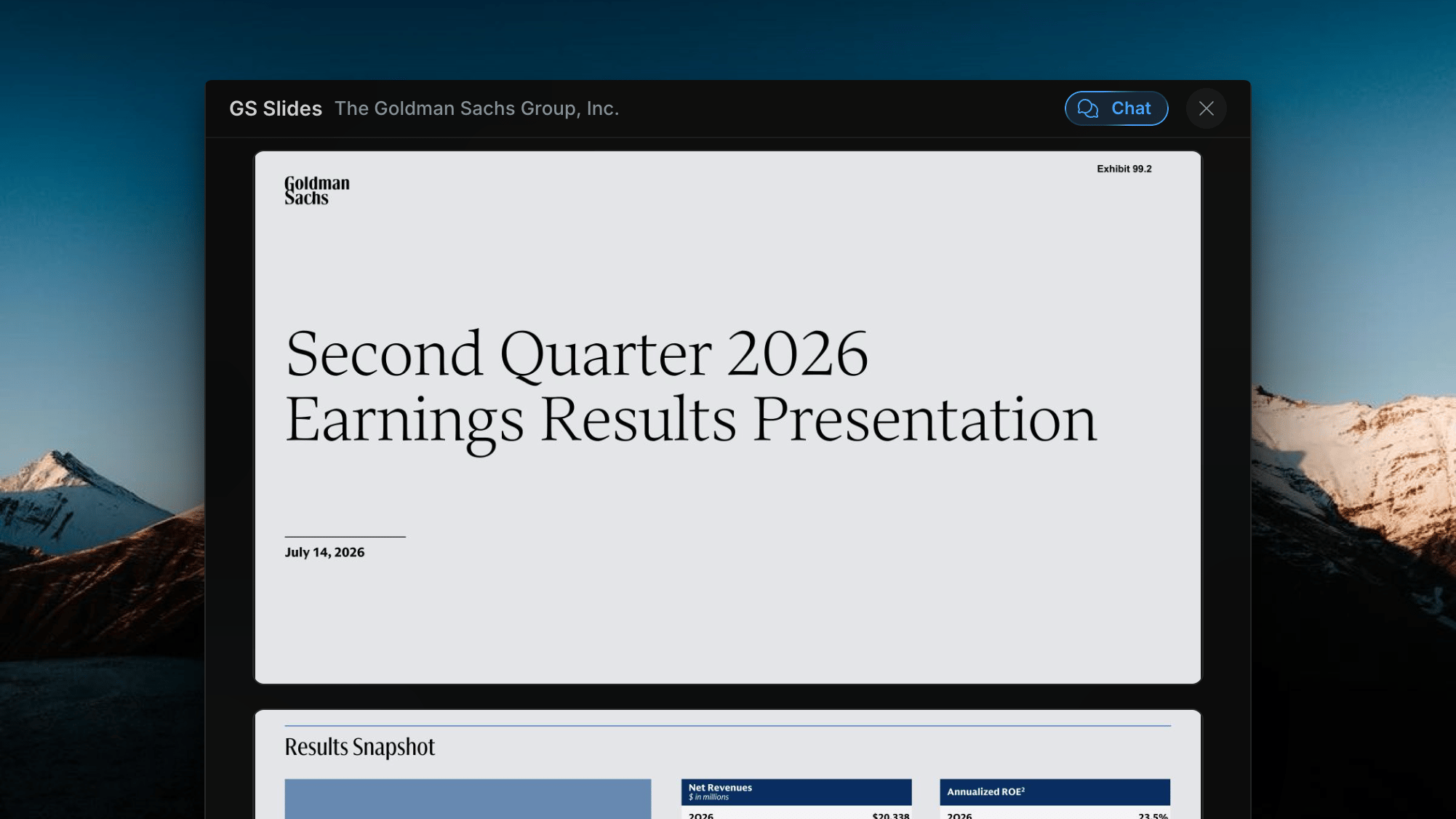
Click any row in the right feed to open the presentation in the Slides viewer. The viewer renders each slide as a full-width image, stacked vertically so you can scroll through the deck from cover to last page.
The header shows the company ticker and name. Slides are displayed in order — title slide first, followed by results snapshots, financial overviews, and any other sections the company included in their filing.
## What Changes When Presentations Is Selected
Shows only investor presentation rows. Each row displays the ticker, date, and full presentation title (e.g. "The Goldman Sachs Group, Inc. Investor Presentation") with a **Presentation** badge.
No change. The sector performance list and index chart remain — market context stays in view while you browse presentations.
## Opening a Presentation
Click any row in the right feed to open the presentation in the Slides viewer. The viewer renders each slide as a full-width image, stacked vertically so you can scroll through the deck from cover to last page.
The header shows the company ticker and name. Slides are displayed in order — title slide first, followed by results snapshots, financial overviews, and any other sections the company included in their filing.
 ## Asking AI About a Presentation
Every presentation viewer has an **Ask AI** button in the header. Click it to open an AI session scoped to that specific deck.
Use Ask AI to query specific slides — "What were the revenue highlights?" or "Summarize the capital allocation section" — without scrolling through the entire presentation.
You can switch between reading the slides and asking questions at any time.
## Related topics
- [News Filter](/home/news-filter.md)
- [Overview](/home/overview.md)
- [Company Profiles: Deep Research on Any Public Stock](/features/company-profiles.md)
- [Filter Bar](/news/filter-bar.md)
- [Filter View](/insider-trades/filter-view.md)
## Asking AI About a Presentation
Every presentation viewer has an **Ask AI** button in the header. Click it to open an AI session scoped to that specific deck.
Use Ask AI to query specific slides — "What were the revenue highlights?" or "Summarize the capital allocation section" — without scrolling through the entire presentation.
You can switch between reading the slides and asking questions at any time.
## Related topics
- [News Filter](/home/news-filter.md)
- [Overview](/home/overview.md)
- [Company Profiles: Deep Research on Any Public Stock](/features/company-profiles.md)
- [Filter Bar](/news/filter-bar.md)
- [Filter View](/insider-trades/filter-view.md)